










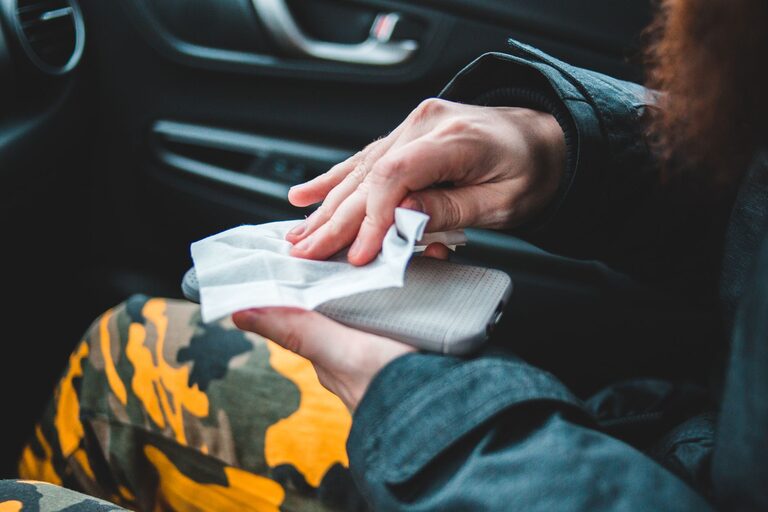
Your phone and keyboard collect dust, fingerprints, crumbs, and everyday grime. Because you touch them often, regular cleaning can keep them looking better and working smoothly. However, electronics need a careful approach. Too much moisture, harsh chemicals, or pressure can damage screens, keys, ports, and coatings.
The good news is that you only need a few basic supplies and a gentle routine. This guide explains how to clean a phone and several types of keyboards safely.
What You Need
Gather your supplies before you begin:
– A clean, soft microfiber cloth
– A small, soft-bristled brush
– Cotton swabs for hard-to-reach areas
– Distilled water, if available
– A manufacturer-approved screen or electronics cleaner
– A small amount of isopropyl alcohol, when allowed by the device maker
– Canned air for keyboards, used carefully
– A clean, dry towel or cloth
Avoid paper towels, tissues, rough fabric, household glass cleaner, bleach, ammonia, and abrasive cleaning products. These can leave lint, scratch surfaces, or damage protective coatings.
Always check the care instructions from your phone, keyboard, or laptop manufacturer. Different materials and finishes may have specific cleaning requirements.
Before You Start
Before cleaning any electronic device, take a few simple precautions:
- Turn off the phone, keyboard, or computer.
- Unplug wired devices from power.
- Disconnect wireless keyboards or remove their batteries when practical.
- Remove the phone case, if you are cleaning the phone.
- Wash and dry your hands.
- Work on a clean, dry surface with good lighting.
Turning off the device makes it easier to see dirt and reduces the chance of accidental inputs. It also helps protect the device if a small amount of moisture reaches an unexpected area.
Never spray cleaner directly onto a phone, keyboard, laptop, or other electronic device. Spray or apply it to a cloth instead.
How to Clean Your Phone
1. Remove dust and loose debris
Start with a dry microfiber cloth. Gently wipe the screen, back, sides, and camera area. Use light pressure, especially around the screen edges and camera lenses.
For dust around buttons, speakers, or seams, use a soft, dry brush. Move the brush outward rather than pushing debris farther into an opening.
Avoid inserting cotton swabs, toothpicks, pins, or other objects into charging ports, speakers, or microphone openings. They can push debris inside or damage delicate parts.
2. Wipe the screen and body
If a dry cloth does not remove fingerprints, slightly dampen one corner of the microfiber cloth with distilled water or a cleaner approved for your phone. The cloth should be damp, not wet.
Wipe the phone gently in one direction or with small, light motions. Pay attention to the back and sides, where oils and dirt often collect. Use a separate dry part of the cloth to remove any remaining moisture.
Do not allow liquid to pool around buttons, ports, speaker grilles, or the edge of the screen. Keep the phone away from running water, even if it has some level of water resistance. Water resistance can weaken over time, and it does not make a device safe to wash.
3. Use disinfecting products carefully
Some phone manufacturers allow certain disinfecting wipes or solutions, while others recommend only a lightly dampened cloth. Follow the instructions for your specific model.
If an approved disinfectant is used, avoid soaking the phone. Wipe gently, then allow the surface to dry naturally. Do not use products containing bleach, hydrogen peroxide, or strong solvents unless the manufacturer specifically says they are safe.
Do not combine cleaning products. Mixing chemicals can create harmful fumes and may damage the phone’s surface.
4. Clean the phone case separately
Phone cases often hold more dirt than the phone itself. Check the case material and care instructions before cleaning it.
For many plastic or silicone cases, remove the case and wash it with mild soap and lukewarm water. Rinse it well and dry it completely before putting it back on the phone. Leather and fabric cases may require a specialized cleaner and should not be soaked.
Make sure both the phone and case are fully dry. Trapped moisture can affect the phone’s exterior and create unpleasant odors.
How to Clean a Keyboard
The best method depends on whether you have a desktop keyboard, laptop keyboard, or mechanical keyboard.
1. Remove loose crumbs and dust
Turn the keyboard upside down over a wastebasket and gently shake it. Do not hit or bend the keyboard. A few light taps on the back may help release crumbs, but use minimal force.
For a desktop or mechanical keyboard, use short bursts of canned air while holding the keyboard at an angle. Keep the can upright and follow its instructions. Long sprays can create moisture, and tilting the can may release liquid propellant.
A soft brush can help loosen dust between keys. Brush from the center outward so debris moves away from the keyboard rather than deeper into it.
For a laptop, avoid aggressive shaking. Hold it securely and use a soft brush or brief, controlled bursts of air. If the manufacturer provides special instructions, follow them.
2. Wipe the keys and surface
Use a dry microfiber cloth to wipe the keyboard surface and key tops. If more cleaning is needed, lightly dampen the cloth with an approved electronics cleaner or a small amount of isopropyl alcohol.
The cloth should never be wet enough to drip. Wipe around the keys without pressing liquid into the gaps. Use a cotton swab that is only slightly damp for narrow spaces, and keep it away from openings.
For a laptop keyboard, take extra care around the trackpad, speakers, and screen hinge. Do not spray cleaner near the display or allow liquid to run under the keys.
3. Removing keycaps
Many mechanical keyboards have removable keycaps, but not every keyboard is designed for easy removal. If you decide to remove them, check the keyboard manual first and use a proper keycap puller.
Take a photo before removing keys so you can replace them correctly. Clean keycaps separately with mild soapy water when the manufacturer allows it. Rinse and dry them completely before reinstalling them.
Do not remove laptop keycaps unless the manufacturer specifically provides instructions. Their small clips can break easily, and replacing them may be difficult.
Common Cleaning Mistakes to Avoid
Keep these habits in mind:
– Do not pour or spray liquid directly onto electronics.
– Do not clean a device while it is powered on or charging.
– Do not use abrasive sponges or rough cloths.
– Do not use household window cleaner on screens.
– Do not force tools into ports or between keys.
– Do not reinstall a phone case or keycaps while they are damp.
– Do not use a household vacuum directly on sensitive keyboard parts unless the manufacturer approves it.
– Do not use excessive pressure on screens, keys, or camera lenses.
How Often Should You Clean?
A quick dry wipe once or twice a week is enough for many people. Clean more often if you eat near your keyboard, share devices, or notice visible buildup.
A deeper keyboard cleaning every few weeks can help prevent crumbs and dust from affecting key movement. Clean your phone case regularly, since it can collect dirt along its edges.
A consistent, gentle routine is safer than occasional aggressive scrubbing. With the right supplies and a little care, you can keep your phone and keyboard clean without putting their delicate parts at risk.